How to Save Pinterest Videos on Android Without Any App
Android gives you a flexible browser-based way to save a Pinterest video. You do not need a special downloader app or a developer tool: a public pin link and your browser are enough. Because the whole flow stays in the browser, it works on everyday devices, from budget phones to tablets, and it leaves the file in a place you already know how to find.
Step 1
Copy a public Pinterest link
In the Pinterest app, open the video pin and tap the share control, then choose Copy link. If you are using a browser, copy the address from the address bar instead. The link should lead to a pin page, not only to a board or search results. Private, deleted, or age-restricted content may not expose a video file. If the app gives you a short link, that usually works too, but copying the expanded pin URL from the browser is a useful way to avoid surprises. Whenever possible, copy a link that you could open on a different account or device without logging in.
Step 2
Open PinSaver in your browser
Launch Chrome or another current browser and visit PinSaver. Paste the link into the main field and submit it. Android may show a paste permission prompt the first time; approve it if you want to use the Paste button, or long-press the field and select Paste manually. PinSaver reads the public page and presents the direct MP4 options it can find. If you use a different browser, the steps are the same, and the resulting file will appear in that browser's download history. Keeping your browser current helps avoid older security settings that can silently block downloads.
Step 3
Pick a file that matches your storage
A pin may offer one or several qualities. Higher resolution looks better on a large display, but it also takes more space and may take longer to move over mobile data. If you are saving several references, choose a balanced option rather than downloading the largest file every time. The labels describe the source options, not a promise that PinSaver can improve the original. If you are on a limited data plan, you can also wait until you are on Wi-Fi, and if storage is tight, saving just the smallest version is often the practical choice.
Step 4
Locate downloads on Android
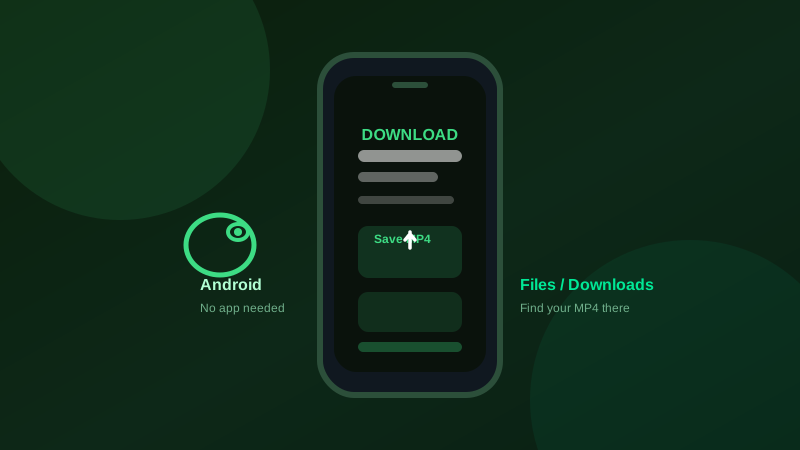
Chrome usually places the file in the Downloads folder. Open the Files app, choose Downloads, and look for the newest MP4. You can rename the file, move it to a project folder, or back it up to your usual storage. If the download does not start, check the browser's download permission and available device storage before trying again. You can also open the notification that appears after a download to jump straight to the file, or long-press it to share or move it without opening your file manager at all.
Use saved videos thoughtfully
A downloaded file is most useful as a private reference for a recipe, design cue, workout, or travel idea. Keep the creator's name and source link with your notes. If you want to publish the video elsewhere, ask for permission and follow the creator's terms instead of assuming a public pin is public-domain material. When you are building a small collection, consider a folder name that reminds you where each video came from, which keeps attribution intact and makes your own project files easier to manage.