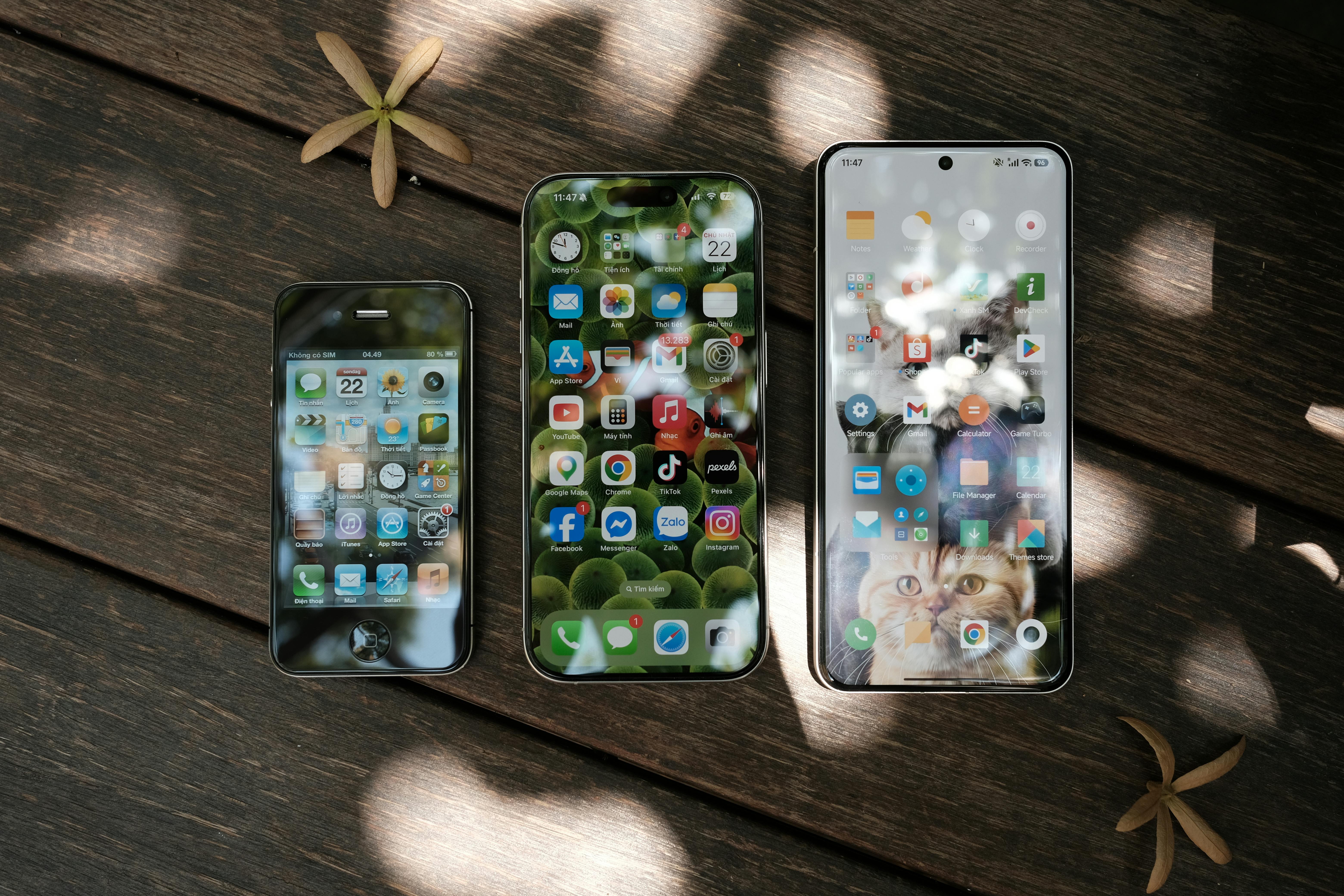
Want to save a Pinterest video on your Android phone so you can watch it offline? Pinterest does not give you a download button for videos, and many "downloader apps" on the Play Store are full of ads or ask for risky permissions. The good news: you do not need any app. Your phone's browser and a free tool like PinSaver are enough.
Why Not Use a Downloader App?
Most Android downloader apps ask for access to your storage, contacts or notifications, and many show full-screen ads before every download. A browser-based tool avoids all of that. Nothing is installed, nothing runs in the background, and you can stop using it any time without uninstalling anything.
What You Need
- An Android phone with Chrome, Firefox, Samsung Internet or any other browser
- The Pinterest app or the Pinterest website
- A public video pin (private pins cannot be downloaded)
- A stable internet connection
Step-by-Step: Download a Pinterest Video on Android
- Open the Pinterest app and find the video you want to save.
- Tap the Share icon on the pin.
- Tap Copy link. Pinterest usually gives you a short link that starts with pin.it.
- Open your browser and go to PinSaver.
- Paste the link into the download box and tap Download.
- PinSaver shows the available qualities, such as 480p, 720p or 1080p, depending on what Pinterest serves for that pin.
- Tap the quality you want. The MP4 file starts downloading.
Where Is the Video Saved on Android?
Most browsers save files in the Downloads folder. Open your Files app (or My Files on Samsung phones) and tap Downloads. Your video will be there. If you want it in your gallery, open the file once and your gallery app will usually pick it up. You can also move it to the DCIM or Movies folder using the Files app.
Chrome also shows a Downloads option in its three-dot menu, which lists everything you saved recently.
Which Quality Should You Choose?
- 480p is small and fine for a phone screen when storage is limited.
- 720p is a good balance of clarity and file size.
- 1080p is best if you plan to watch on a bigger screen, but only appears when Pinterest offers it for that video.
PinSaver can only list what Pinterest itself provides. It does not create higher quality than the original.
Troubleshooting on Android
The link will not work
Make sure you copied the link with the Share option and that the pin is a video, not a photo. Photo pins show a "no video found" message.
The download does not start
Check that your browser is allowed to download files. In Chrome, open Settings, then Site settings, then Automatic downloads, and allow downloads for the site. Also make sure you have enough free storage.
I cannot find the file
Open the Files app, tap Downloads, and sort by date. If you used a different browser, check that browser's own download list.
The video has no sound
Some Pinterest videos are uploaded without audio. If the original has sound, try downloading again on a better connection.
Tips for Saving Many Videos
Create a folder called Pinterest in your Files app and move each video there right after downloading. Rename the files so they are easy to find later, for example "pasta-recipe" or "home-workout". This keeps your phone tidy and saves time later.
A Note on Responsible Use
Public does not always mean free to reuse. Save videos for personal viewing, and respect the creator's rights if you plan to share or repost anything.
Frequently Asked Questions
Do I need to install an app on Android?
No. PinSaver works in your phone's browser.
Is PinSaver free?
Yes. There is no sign-up and no download limit.
Can I download private pins?
No. Only public pins work.
Does it work on iPhone too?
Yes, it works on any modern browser, including iPhone, Windows and Mac.
Ready to try it? Open PinSaver, paste your Pinterest link and save your video in a few seconds.